Book a meeting
Book an intro meeting while the lead is on the phone: pick a free moment, send the invitation and update everything in one place.
- Book a meeting from the call block
- What Ringlane does for you in one go
- What to do when a step doesn't work
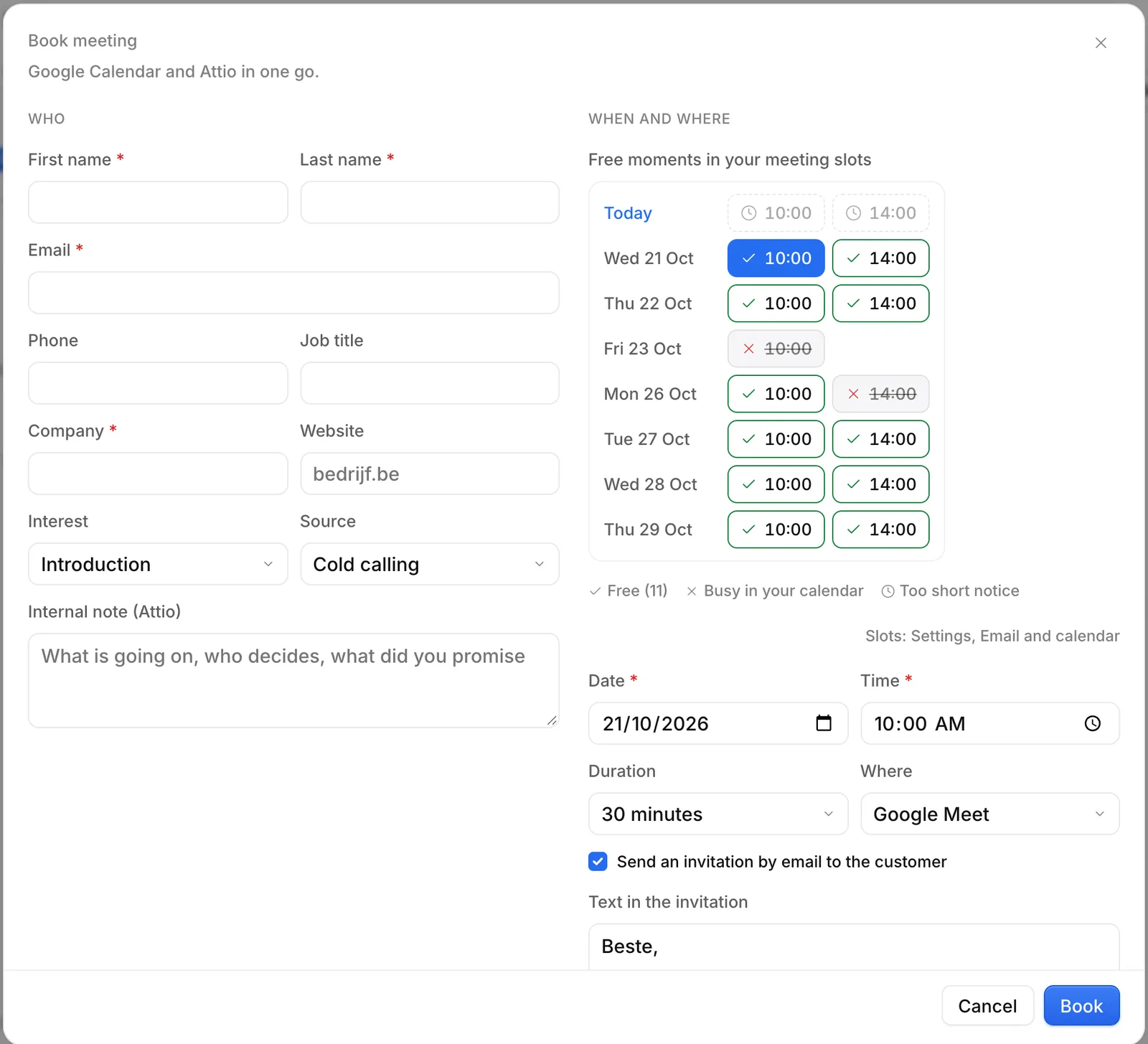
When the lead says yes, press A in the call block. The Book meeting window opens with the lead's details already filled in. You can also book via Book meeting at the top of Call or Calendar, or via ⌘ K.
Booking needs a connected Google Calendar. If Attio is connected too, Ringlane passes the meeting straight to your CRM. See Connect Google Calendar and Connect Attio.
How to book
- Check the details under Who. First name, last name, email and company are required.
- Under Interest choose the topic, and under Source where the lead came from.
- Under When and where pick a free moment. Green is free; busy and too short notice can't be chosen.
- Choose the Duration and Where: Google Meet, at the office, at the customer or by phone.
- Leave Send an invitation by email to the customer on, and adjust the text if you like.
- Click Book.
What Ringlane does in one go
- Google Calendar: the meeting in your calendar, with a Google Meet link if you chose one, and the invitation to the customer.
- Attio, if connected: the company and the contact, created or found; a deal; a task to prepare the meeting and a note with what you know.
- Ringlane: the lead on Meeting, with the meeting in its log.
You see each step tick off. If the moment has become busy in your calendar in the meantime, Ringlane warns you first.
If a step doesn't work
If a step fails, you see which one and why. Click Missing steps again: what's already done isn't done again. That way you never get two meetings or two deals.
What you write under Internal note (Attio) isn't seen by the customer. Put in what your colleague needs to prepare: who decides, what's going on, what you promised.
In a colleague's calendar
If a colleague lets you book in their calendar, choose their name under In the calendar of at the top. See Book in a colleague's calendar.