The six outcomes
What each outcome does to a lead: the new status, the next task and when the lead comes back.
- Which outcome to choose when
- Which task Ringlane plans for you
- When a lead becomes Unreachable
After every call you choose one outcome. Ringlane then puts the lead on the right status, plans the next step and keeps track of how often you called. Under each button in the call block it says what it does.
Overview
| Outcome | Key | Status after | What follows |
|---|---|---|---|
| No answer | N | Contacted | Call again following the call flow: by default after 30 minutes, then after 2 hours, then the next working day |
| E | In conversation | The lead asks for an email: a task to email them, by default within the hour. Counts as a conversation | |
| Call back | T | In conversation | You choose the moment, with one click or yourself; see Call back |
| Meeting | A | Meeting | The window to book the meeting opens |
| Not interested | X | Not interested | You choose the reason; the lead closes |
| Invalid number | O | Invalid | The lead closes; this doesn't count as an attempt |
Call back: choosing the moment
If the lead asks you to call back later, choose Call back. In the window, click a moment:
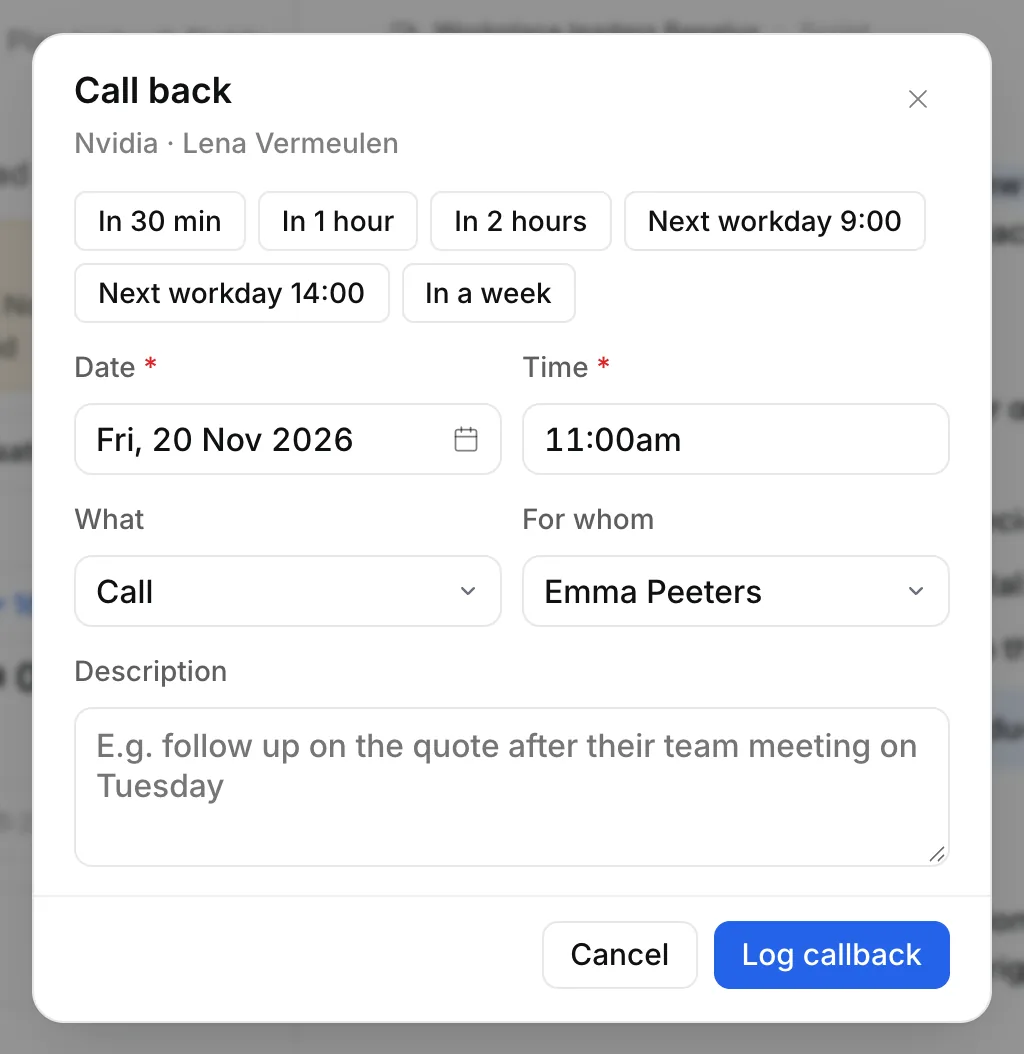
- In 30 min, In 1 hour or In 2 hours, rounded to five minutes.
- Next workday 9:00 or Next workday 14:00.
- In a week: five working days later at 10:00.
Or choose the Date and Time yourself; in Date you can also type, such as 18/11, today or tomorrow. Type what was agreed under Description; it's shown at the top of the lead when you call back. A moment that has already passed isn't possible: Ringlane then says This moment has already passed. Pick a later time.
The lead comes back to the call block at that time, not earlier.
After too many attempts: Unreachable
If a lead still doesn't pick up after a number of attempts, it becomes Unreachable and no longer appears in the call block. Under the No answer button it says when it's your last attempt. The default is four attempts. An owner or admin chooses the number of attempts and the wait between them under Settings › Call flow. See Call flow.
Wants a meeting, but no time yet
Does the lead want a meeting, but there's no time yet? Choose Meeting and click Wants a meeting in the Book meeting window. The lead goes to In conversation with a task to schedule the meeting, by default the next working day. This counts as a hit in the key figures.
Conversation, then the outcome
A conversation should lead somewhere. That's why Conversation isn't in the call block: you choose what came out of it. Want to log only a conversation anyway? Choose Conversation on the lead's record, under Log. If you call through Aircall, an answered call appears on the record as Conversation by itself.
Within half an hour of such a conversation, you choose a meeting, a callback, an email or not interested for the same lead? Then Ringlane updates that same call. That way one phone call never counts as two attempts in your numbers.
Not interested: the reason
With Not interested you choose why, with the number keys 1 to 9, and add briefly what the lead said. Enter logs it. The reports show which reasons come up most. An owner or admin puts the list of reasons together under Settings › Attributes › Reason not interested. See Sectors, topics and reasons.
Made a mistake? The message after every outcome has an Open lead page button. There you correct the status or the next task.
The statuses
- New: never contacted.
- Contacted: called or messaged, no conversation yet.
- In conversation: there was contact, but no meeting yet.
- Later: not now, try again later.
- Meeting: a meeting is booked.
- Not interested, Unreachable and Invalid: closed. In the leads you find them with the Status filter; see Filtering.
An owner or admin chooses the order, the colour and a custom name of each status under Settings › Attributes › Status. See Change the statuses.