Leads: views, sorting and filters
One bar above your leads: choose a view, set your columns, and sort and filter by status, owner, channel or any other field.
- What the bar above your leads holds
- Create, share and reset a view
- Sort and filter on any field
Above your leads there is one bar, just like in the call block. On the left you choose what you see: the view, the columns, the order and the filters. On the right you search for a lead, switch between table and board, and pick the campaign.
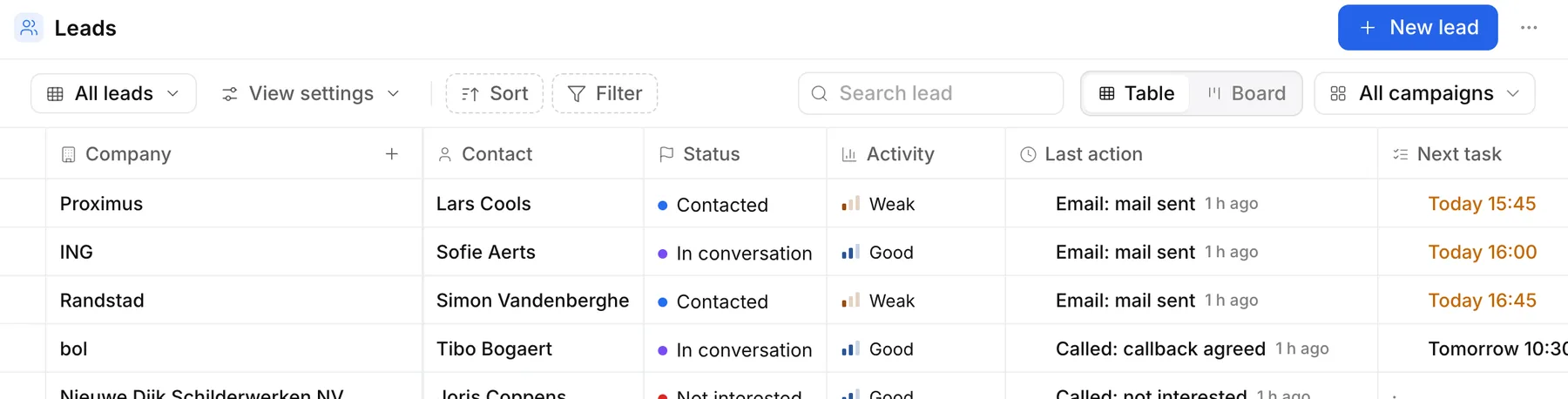
The bar
- All leads: the view you're looking at. Click it to choose another one or search for one.
- View settings: which columns you see and in what order. Drag a column to another place, or click Add column.
- Sort: the order of the list. See Sorting.
- Filter: which leads you see. See Filtering.
- Search lead: find one lead quickly.
- Table or Board: a list, or a board with a column per status.
- All campaigns: all your leads, or only those of one campaign.
If leads share a number, email address or company, you also see Possible duplicates. Click it to review them.
The tabs per status and the dropdowns for channel and order are gone. Status, owner and channel are now filters, just like the other fields.
Views
A view remembers your columns, your sort and your filters. All leads is the workspace's default view. The columns you choose there only apply to you.
Create a view
- Click the name of the view, for example All leads.
- Click New view at the bottom. It starts as a copy of what you see now.
- Set the columns, the sort and the filters. Ringlane saves every change right away.
The menu of a view
Next to each view in the list there's a ⋮ menu:
- Rename, Duplicate and Delete. If you delete a view, the leads themselves stay.
- Restore default, for All leads: the columns, sort and filters go back to the default.
- For an owner or admin also Share with workspace, so everyone sees the view, and Only for me to make it personal again.
A view you create yourself is only visible to you. Shared views appear in the list under Shared with the workspace; only an owner or admin changes them.
Sorting
- Click Sort, then Add sort.
- Choose a field, such as Last changed, Call attempts, Postal code or a custom attribute.
- Choose the direction: Ascending or Descending.
You can combine up to three sorts. The top one weighs the most; drag them to change the order, or remove one with the cross. Without a sort, the most recently changed leads come first. Once you sort, the button says Sorted by with the first field.
Filtering
- Click Filter and choose the field to filter on.
- For a choice, such as the status or the country, tick one or more values. For text, a number or a date, choose a condition such as contains, greater than or before.
Each filter then shows as a small button next to the bar. Click it to change it, or the cross to remove it. With Advanced filter you combine conditions with and or or.
You can filter on, among others:
- Status: for example only New, or only the closed leads: Not interested, Unreachable and Invalid.
- Owner: the leads of one colleague.
- Channel: Call, LinkedIn, Email or WhatsApp. A lead without a channel counts as Call.
- Sector, City, Postal code, Country and Job title.
- Call attempts, Last action and Next task: for example the leads with fewer than three call attempts.
- Any custom attribute of your workspace. See Attributes.
Want to call a selection right away? The call block has the same bar, with views of its own. See Calling from a list.