Calling from a list
Call your queue as a table, like in Excel: pick a row, filter and sort, and save views you open from the sidebar.
- Switch between Focus and List
- Filter, sort and save your call queue as a view
- Call row by row with the keyboard
At the top of the call block you choose how you call. Focus shows one lead at a time, with the script beside it. List shows your whole call queue as a table, like in Excel. Both use the same order and the same filters.
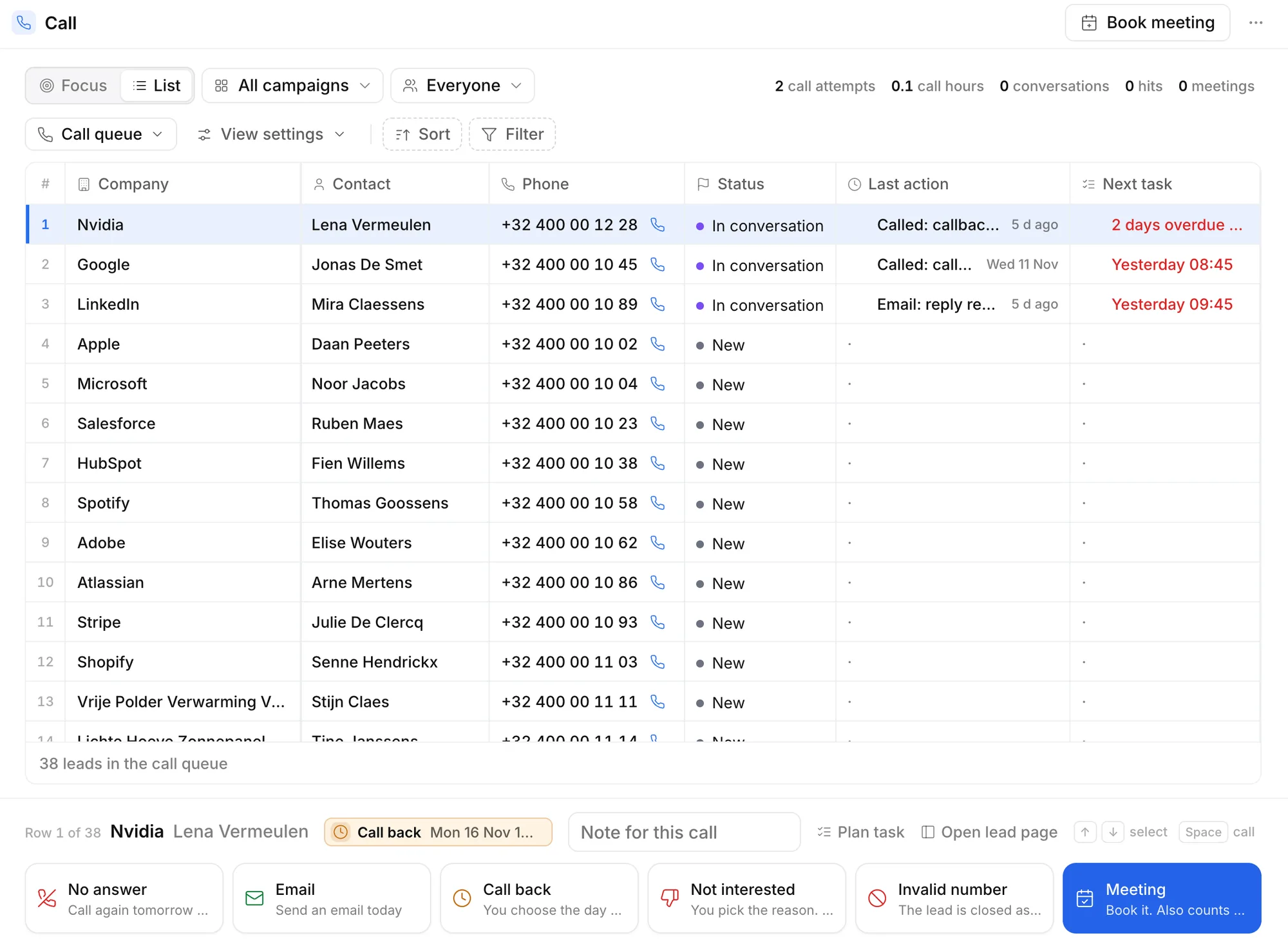
At the top
- Focus or List: one lead at a time, or the call queue as a table.
- The campaign: All campaigns or one campaign.
- Everyone or My leads: the whole queue, or only your own leads and leads that belong to no one.
- On the right, your numbers for today: call attempts, call hours, conversations, hits and meetings. See Key figures.
Calling from the list
- Click List. The first row is ready.
- Pick another row with a click, or with ↑ and ↓. At the bottom it shows which row you picked, for example Row 1 of 38.
- Press Space to call, or click the number. Type your note in Note for this call.
- Choose the outcome with a button or its key. Then the next row is ready.
Above the outcomes you briefly see what needs to happen with the chosen row and when, for example Call back · today at 15:00. Hover over it to read the task's description. What that label means is explained in What needs to happen.
At the bottom you also find Plan task, to choose a day and time yourself without logging a call, and Open lead page. See Outcomes.
Views of your call queue
Above the table is the same bar as with the leads. Call queue is the default view: first whoever is due for a call back now, then the new leads.
- View settings: Show row numbers, Call-backs first (whoever is due for a call back stays at the top, even when you sort) and the columns. Drag a column to another place or click Add column.
- Sort: by one to three fields, such as the postal code or the number of call attempts.
- Filter: for example only one sector, one city or the leads with fewer than three call attempts.
Click Call queue and then New view to save a view of your own, such as Construction in Ghent. With the ⋮ menu next to a view you choose Add to favourites, Rename, Duplicate or Delete. For Call queue, Restore default resets everything.
Your views are yours and follow you to every device. A favourite view appears in the sidebar: one click opens the call block as a list, with that view.
Focus follows the same view. If you pick a filter and a sort in the list, Focus keeps calling in that order, lead by lead with the script beside it. In Focus, press S to skip a lead.