Import a call list
Load an Excel or CSV file into a campaign, including a Bizzy export, in four steps.
- Prepare your file
- Link columns and review values
- What happens to duplicates and existing leads
Your call list comes in as an Excel or CSV file. Ringlane recognises most column names by itself, including those of a Bizzy or Apollo export.
Prepare your file
- One row per lead, with one row of column names at the top.
- At least a company name and a phone number. First name, last name, job title, email, website, address and industry come along too.
- Calling private individuals without a company? That works too; see The company name.
- Phone numbers may be without a country code: Ringlane adds the code of your workspace's default country.
The standard columns and the example file
In the Upload file step you see the column names Ringlane always recognises: Company, First name, Last name, Job title, Phone, Mobile, Email, Website, LinkedIn, Street, House number, Postal code, City, Country, Industry and Note. Only Company and Phone are required.
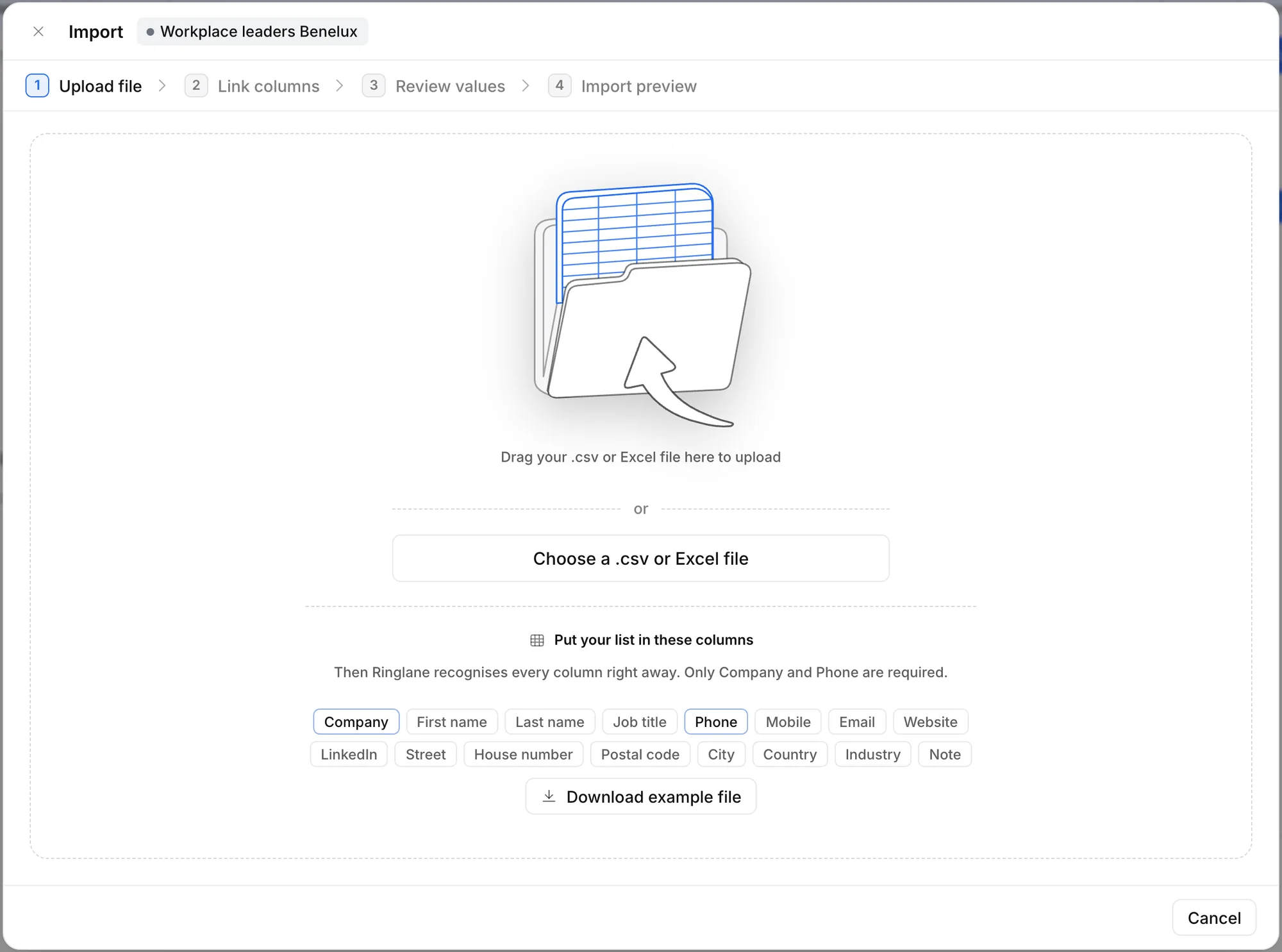
Click Download example file for a CSV file with those columns and two made-up rows, in the language of the app. Put your list in the same columns and Ringlane links everything by itself.
Ringlane also recognises other names for the company column, such as Company name, Organisation, Organization name, Account name or Business, and Dutch names such as Bedrijfsnaam, Klantnaam or Klant.
In four steps
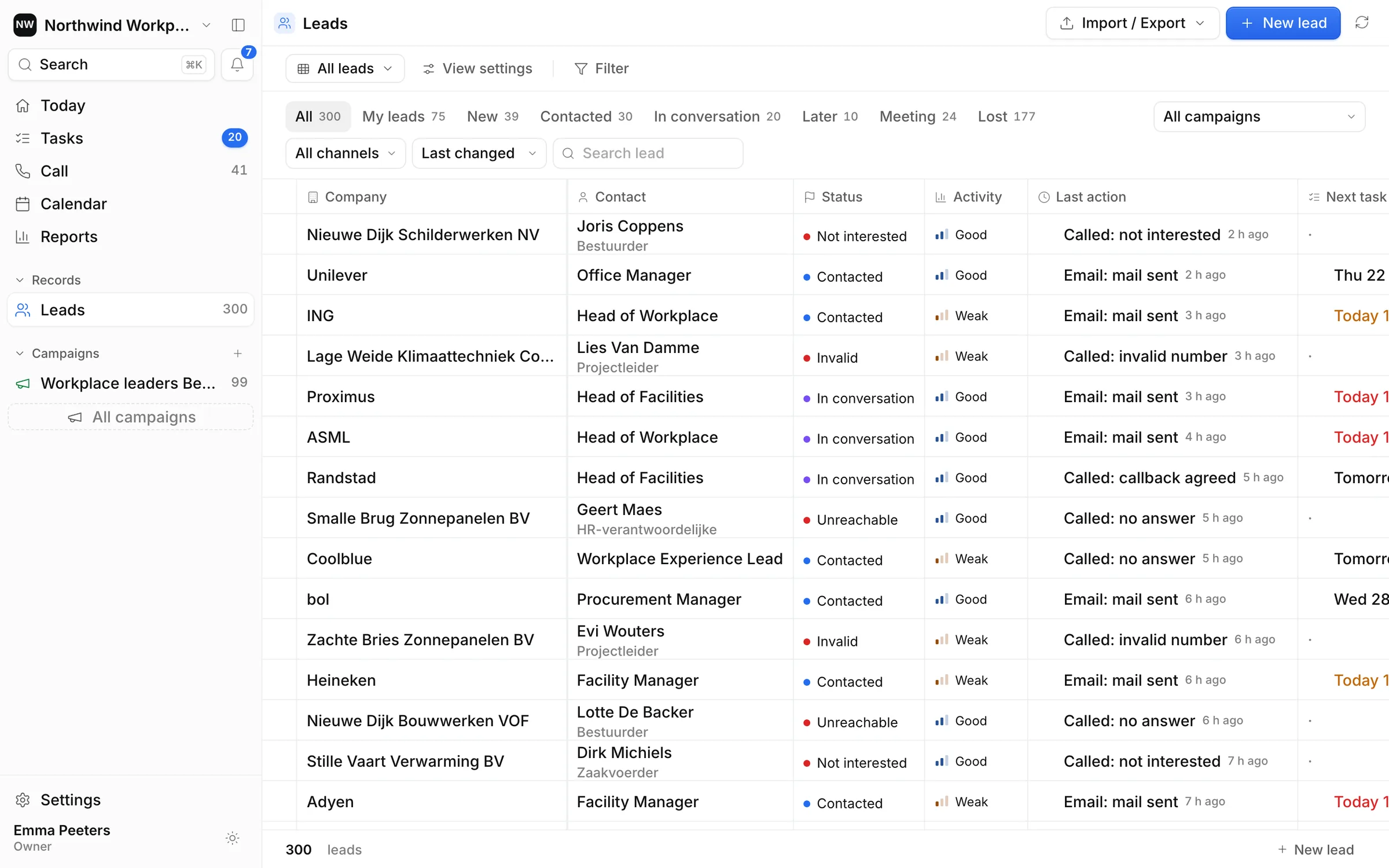
- Upload file: drag your file into the window or click Choose a .csv or Excel file. You open the window under Leads › ⋯ › Import CSV or Excel, with Upload next to a campaign, or it opens by itself after creating a campaign.
- Link columns: check that each column is matched to the right field in Ringlane. Under each linked column you see the first value from your file, so you can tell right away if it's right. Leave a column you don't need empty.
- Review values: Ringlane shows what comes in and what it cleans up, such as phone numbers and websites.
- Import preview: choose the campaign (or create one here), the source, and optionally the caller who gets these leads. Ringlane also tells you here how many leads had no company name and which name they get. You can still exclude rows. Then click Import.
The company name
Ringlane never quietly puts a contact's name in the place of the company.
- No column linked to Company? Then you can't continue. Choose the Company field for the right column, or tick My list has no companies (private individuals). Every lead then gets the person's name.
- Rows without a company name get the name from their website or email address, or else the name of their contact. In the preview such a lead shows from website or contact name.
If a column doesn't look right, Ringlane warns you above the columns. You can still continue:
- The column linked to Company holds the names of the contacts.
- Another column seems to hold the company names. Click Use as Company to link that column.
- A column linked to another field holds company names.
- Fewer than half of the phone numbers are valid, or fewer than half of the email addresses are email addresses.
Duplicates and existing leads
- Rows that appear twice in your file are imported once.
- A lead you already have isn't created twice. Ringlane fills in data it was still missing and overwrites nothing, not even its company name.
- Rows without a valid phone number are skipped and shown separately.
Want to keep extra columns, such as revenue or number of employees? Choose Create new field for that column; the import then creates the field itself. An owner or admin can do this. See also Attributes.
How many leads fit
Each lead is one record. Free has room for 150 records per workspace, Plus for 10,000 and Pro for 25,000, across all your campaigns together. You see what was imported afterwards under Settings › Import history.
If you call individuals, check that you're allowed to. Belgium and the Netherlands have rules on unsolicited calls; ask for advice when in doubt.