The call block
Call lead by lead from one screen: the number, the script, the arguments and the outcome with one key.
- What you see where in the call block
- In which order leads come up
- Start a call, log it and move on
The call block is where you spend most of your time. Ringlane lines up one lead at a time with everything you need, and right after your outcome the next one.
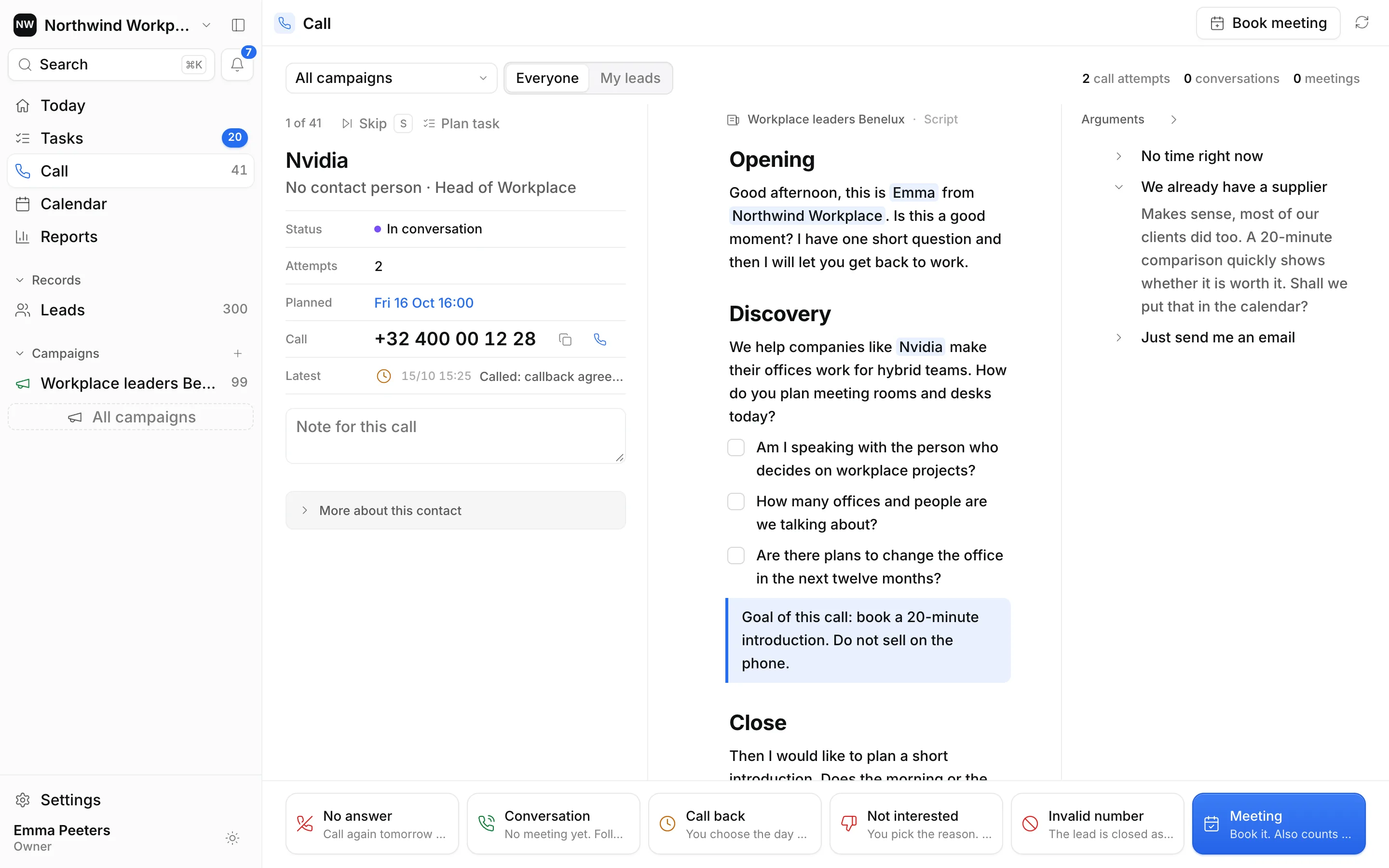
What you see
- At the top: Focus or List, the campaign you're calling, Everyone or My leads, and your counters for today, including your call hours and hits. With List you see your whole call queue as a table; see Calling from a list.
- On the left: the lead. At the top what needs to happen, then company and contact, the status, the number of attempts, the number, the last action and a box for your note for this call. The rest is under More about this contact.
- In the middle: the campaign's script, with the lead's name and company already filled in.
- On the right: Arguments, the answers to objections (Plus and Pro).
- At the bottom: the six outcomes, each with its key and what happens next.
What needs to happen
At the top of the lead you see why it's in front of you now and when that was agreed, for example Call back · agreed for today at 15:00. After No answer it says Try again with the number of the attempt. If you typed a description with the task, it's shown underneath. If the task belongs to a colleague, you see who it's assigned to.
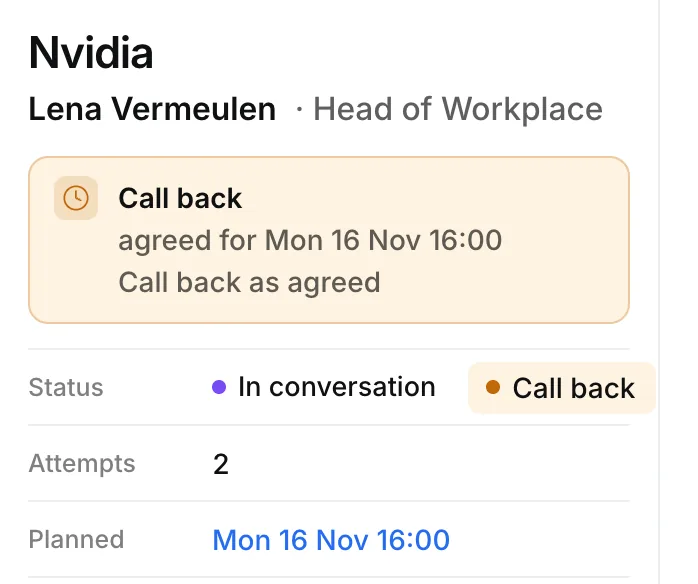
Next to the status a second label shows what needs to happen: Call back, Try again, Schedule the meeting, Follow up, Call, Send email, LinkedIn message or WhatsApp message. That way you know right away that a lead In conversation wants a call back. A new lead has no label.
In which order
- First, leads whose time has come: a callback you agreed or a new attempt after No answer, earliest first. A lead only joins the call queue at the time of its task, never earlier.
- Then new leads with a phone number, oldest first.
Not in the call block: leads due later, leads with a task by email or LinkedIn, closed leads and numbers on the Do not call list. With My leads you only see leads assigned to you or to no one yet.
The lead in front of you in Focus stays there until you choose an outcome, plan a task or click Skip. If another lead's time comes in the meantime, it lines up behind it. So the screen never jumps to another lead while you're calling.
A call
- Call the number. With Plus or Pro you click it to call with your own phone or softphone; on Free you dial it yourself.
- Press Space: the call and the timer start. Press Space again to stop the timer.
- Type your note while you talk.
- Choose the outcome with one key. Ringlane plans the next step and lines up the next lead.
Want to skip a lead for now? Press S or click Skip. To plan a different follow-up, use Plan task.
What happens to your call
The outcome, your note and the length of the call go into the lead's log. A colleague who calls later sees right away what was said, and your calls count in the reports.