Write a call script
The script sits in the middle of the call block. How to build it, with placeholders and answers to objections.
- Build a script from blocks
- Placeholders that are filled in per lead
- Put answers to objections in the Arguments panel
Each campaign has one script. The caller sees it during every call, in the middle of the call block, with the lead's name and company already filled in.
Getting started
- Go to Call and choose the campaign at the top.
- Click Insert sample script for a neutral starting point, or click in the empty script and start typing.
- Adapt the sample to your offer: who you are, why you call, your key question and how you ask for the meeting.
Every change is saved by itself shortly after. Everyone who calls sees the latest version right away.
Blocks
A script is made of blocks, like in a notes app. Type / in an empty block to choose:
- text and headings in three levels;
- bulleted lists, numbered lists and checkboxes (handy for questions you want to be sure to ask);
- toggles that fold open, for example one per objection;
- quotes, callouts and dividers.
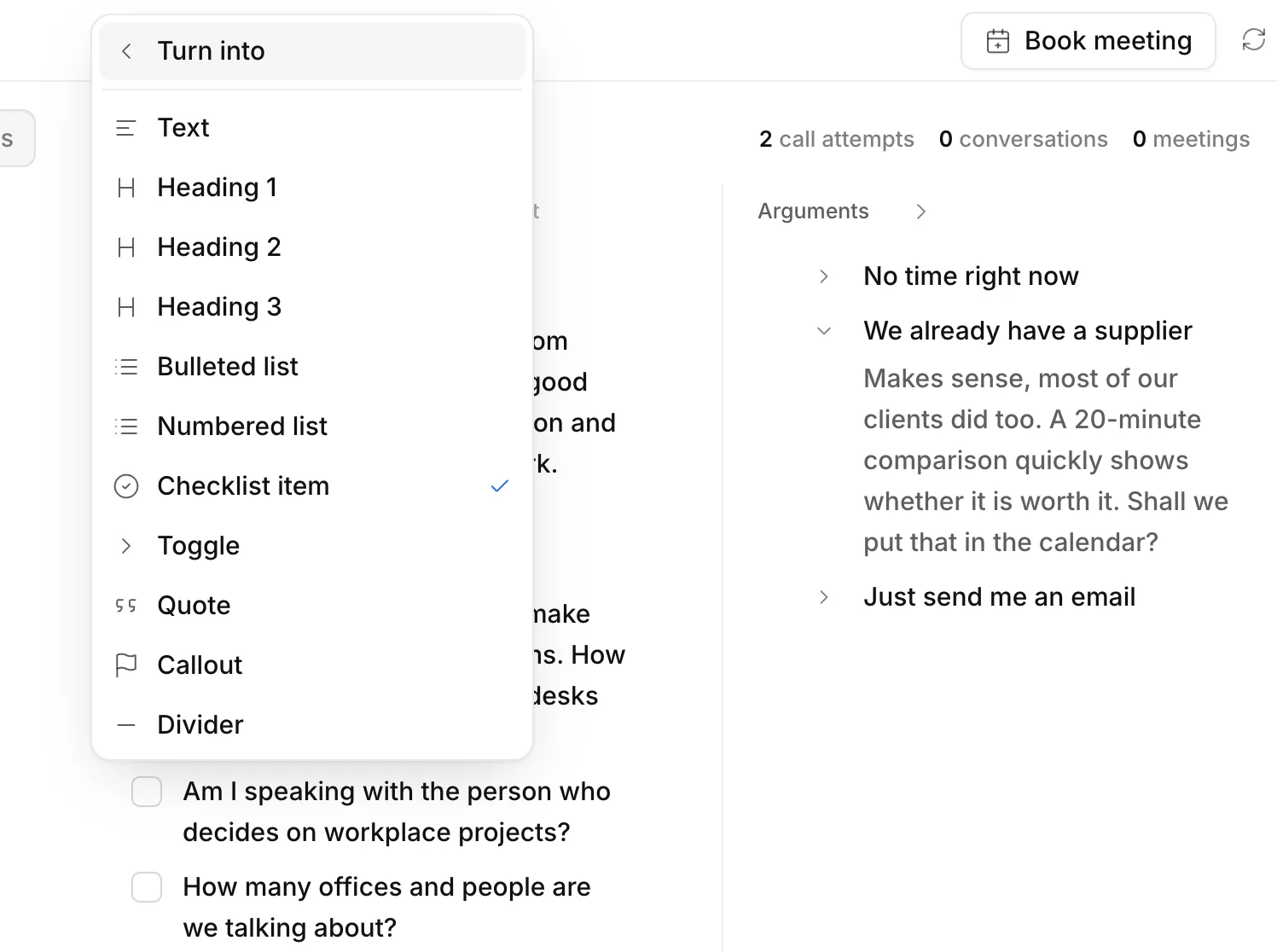
You type formatting the way you're used to: **bold**, *italic* and ~~strikethrough~~.
Placeholders
Words between curly brackets are filled in per lead and highlighted, so the caller doesn't miss them. The placeholders use Dutch names, in every language:
| Placeholder | Becomes |
|---|---|
{voornaam}, {achternaam}, {naam} | the lead's contact: first name, last name, full name |
{bedrijf}, {functie}, {stad} | the lead's company, job title and city |
{ik} | the first name of the person calling |
{namens} | who you call for: the campaign's client, or your own company |
Answers to objections
To the right of the script is the Arguments panel: the answers to objections, apart from the script, so the caller can open them quickly during a call. A heading such as "Objections" ("Bezwaren") in your script is moved into that panel together with what's under it.
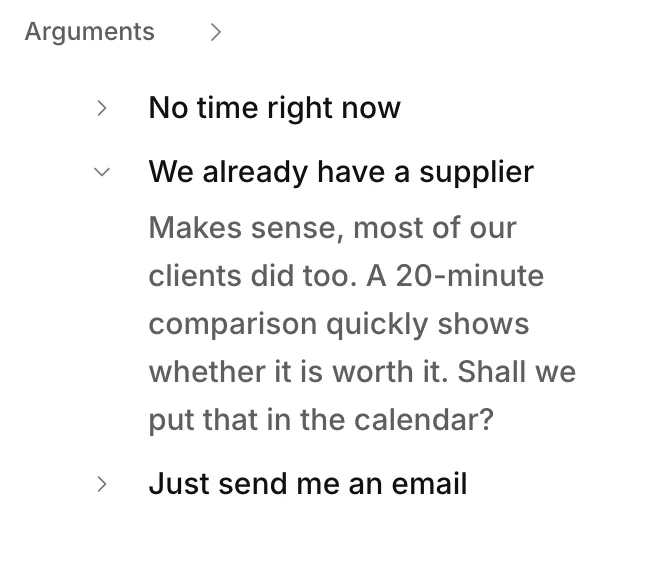
The Arguments panel is part of Plus and Pro.
Tips for a script that books meetings
- Keep the opening short: who you are, why you call, and one question.
- Put what you say as text and what you do as a callout, so the difference is clear at a glance.
- Ask for the meeting with two options ("morning or afternoon?") rather than a yes or no.
- Check in Reports every week why leads say no, and adjust your answers to it.